To set up your own separate Watch Lists, open the Watch List Manager panel on the right side of your Beyond Charts screen and pin it open , as shown in section 2.3.2.
Click on New at the top of the Watch List Manager panel and type the name of your new Watch List.
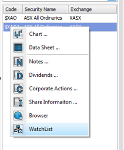
Now open the Securities Explorer panel and pin it open too. Find the first stock that you would like to keep in the Watch List and right click on it and select Watch List then select your desired Watch List or define a new Watch List as shown in Fig 3.4, or drag it from the Securities Explorer and drop it anywhere over the Watch List Manager panel. It will be placed in the appropriate selection of the Watch List Manager panel , as shown in Fig 3.4.
Fig 3.4
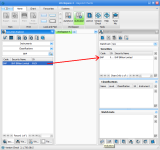
Fig 3.5
You can also drag a Classification from the drop down menu in the Securities Explorer across to the Classifications section of the Watch List Manager. After dropping, you can adjust the Exchange(SX) and Instrument of the Classification by clicking on the relative cell in that row.
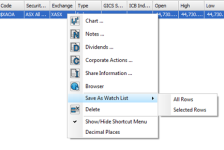
To add a stock to your Watch List from a datasheet, select the stock(s) you want to add then click the Watch List icon, or right-click it then select Save As Watch List.
The Watch List can be deleted or renamed, and each entry in the Watch List can also be removed individually.
Whole Sectors or other Watch Lists can be placed in a single Watch List. You can maintain as many Watch Lists as you would like.
Once a Watch List has been created it will appear in the My Watch Lists area of the Watch List Manager for easy access.
© Copyright Quantum Methodologies, 2014.
ALL RIGHTS RESERVED
Send Feedback on this topic to Beyond Charts.